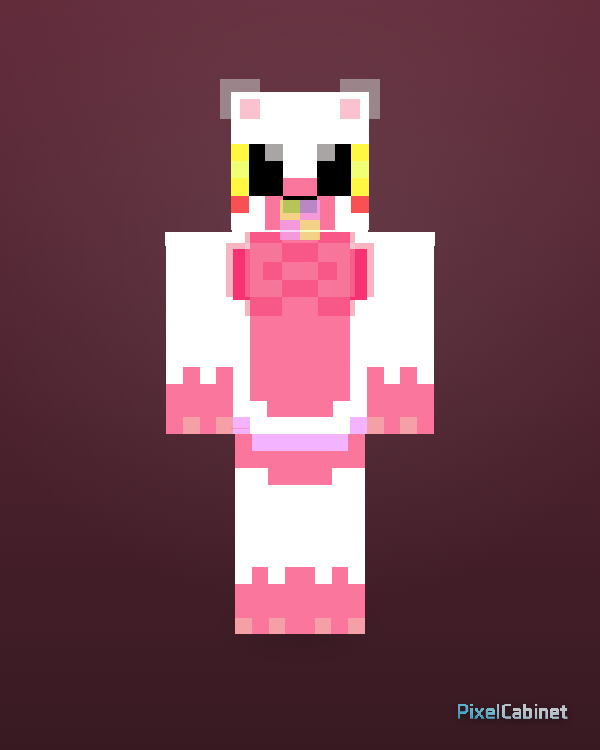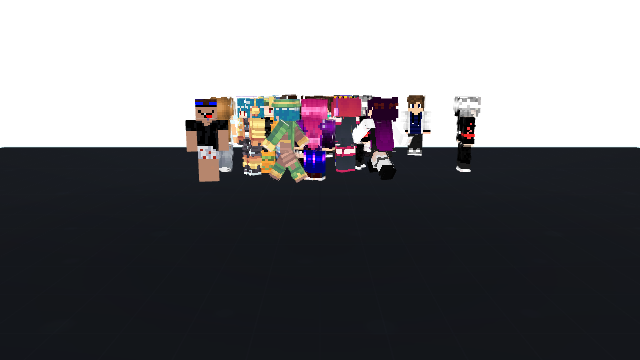
3D character stage
stage
A playable 3D Minecraft character scene with 20 characters.
Minecraft character stage
Watch the stage, focus on the cast, and inspect the shared scene without opening editor controls.
Press play to watch the stage motion, or pause to inspect the scene.
Cast
Characters included in this stage scene.
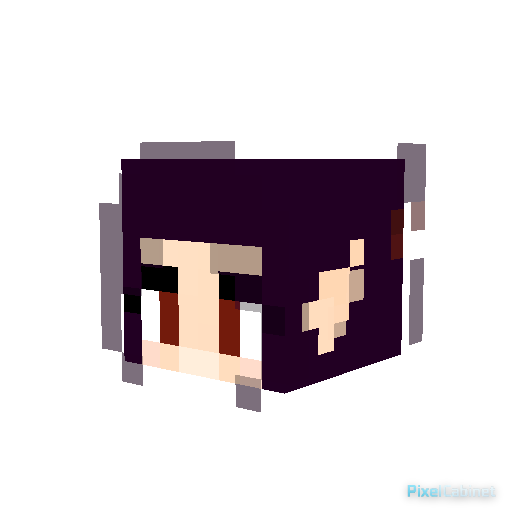
elegante2
Role: Main
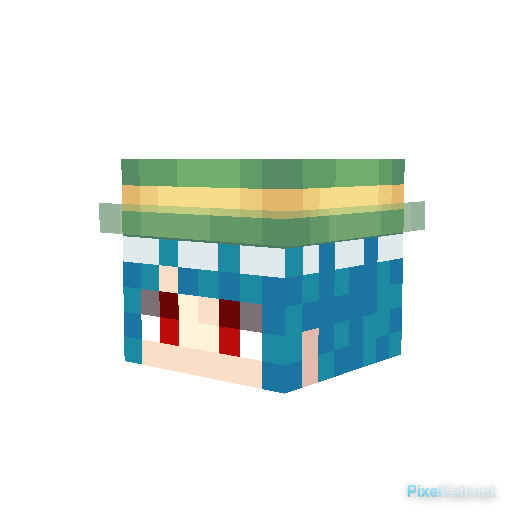
0357 Tropius Yuki
Role: Support
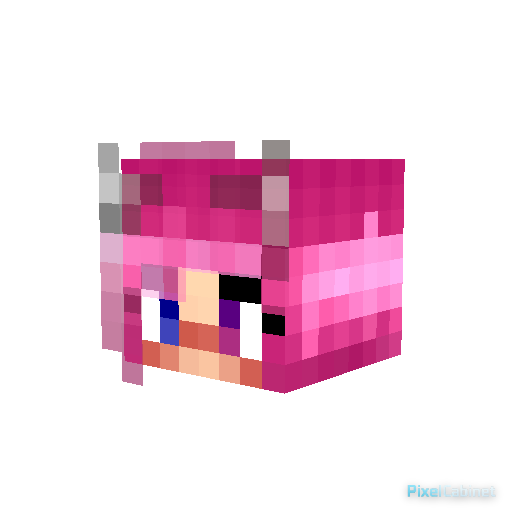
.
Role: Cast 3
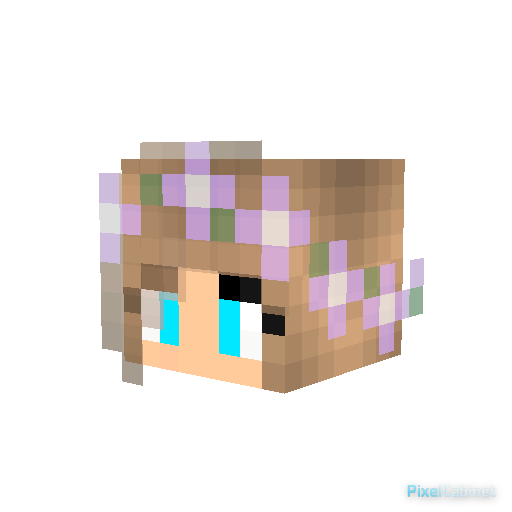
ROXINHA
Role: Cast 4
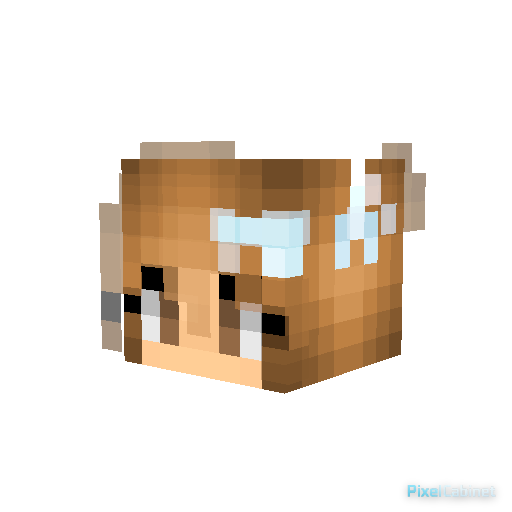
dfdfdfdfd
Role: Cast 5
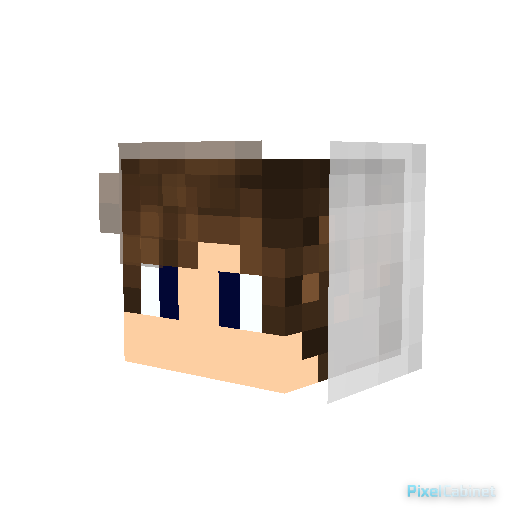
Jason
Role: Cast 6
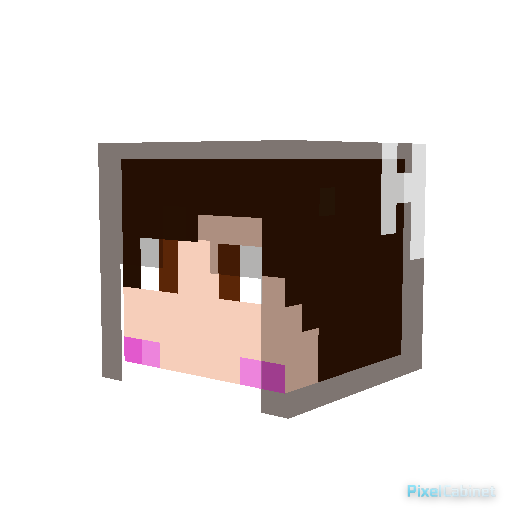
m2
Role: Cast 7
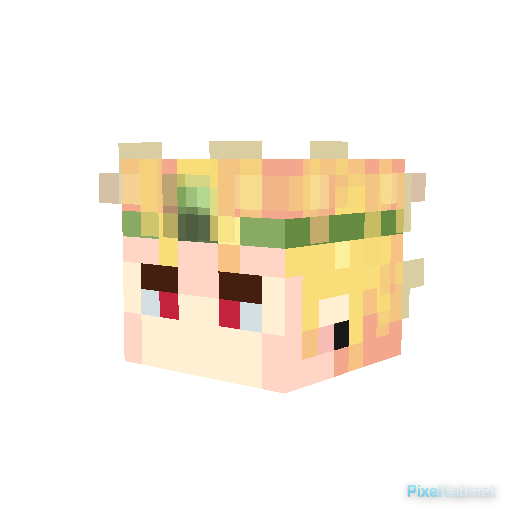
DIO
Role: Cast 8
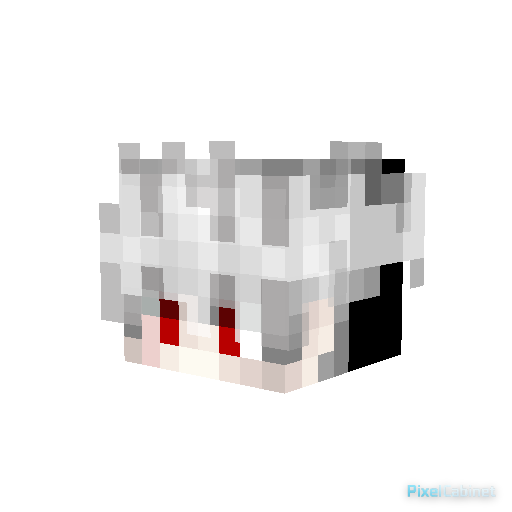
mc
Role: Cast 9
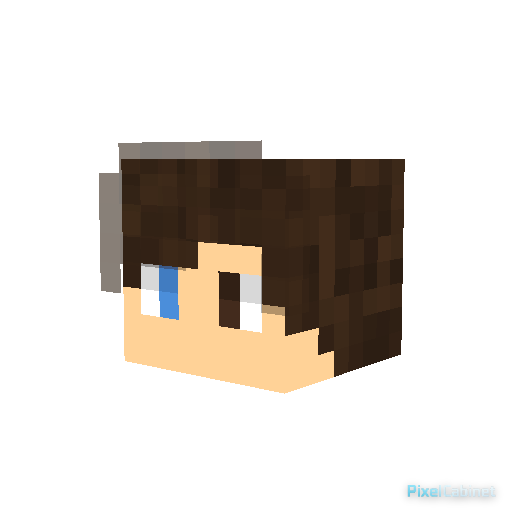
waiter
Role: Cast 10
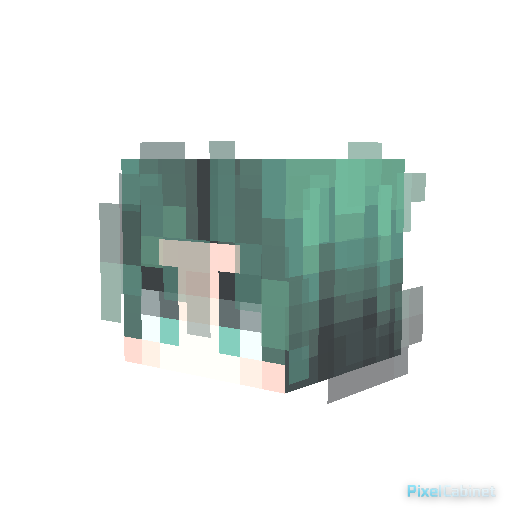
kjb
Role: Cast 11
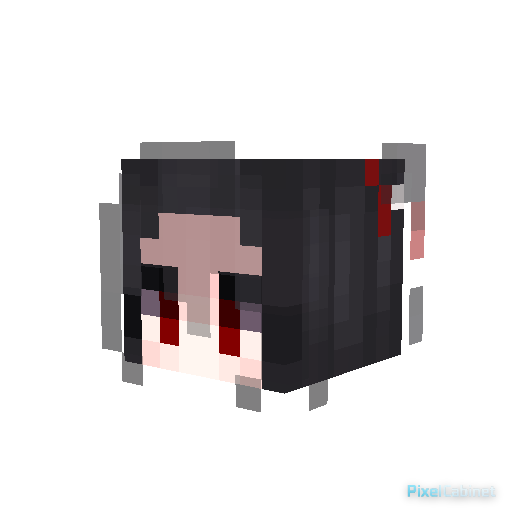
g
Role: Cast 12
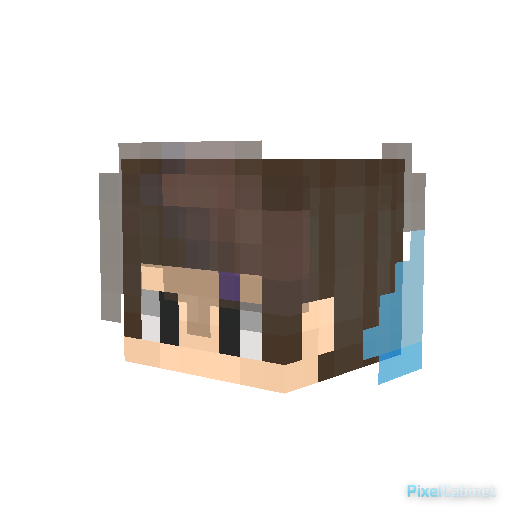
paco
Role: Cast 13
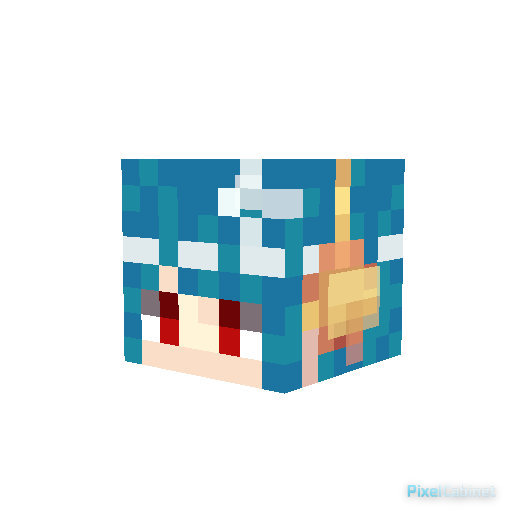
0361 Snorunt Yuki
Role: Cast 14
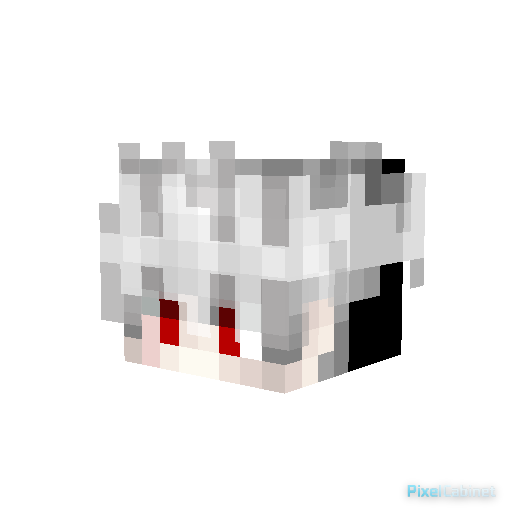
razot
Role: Cast 15
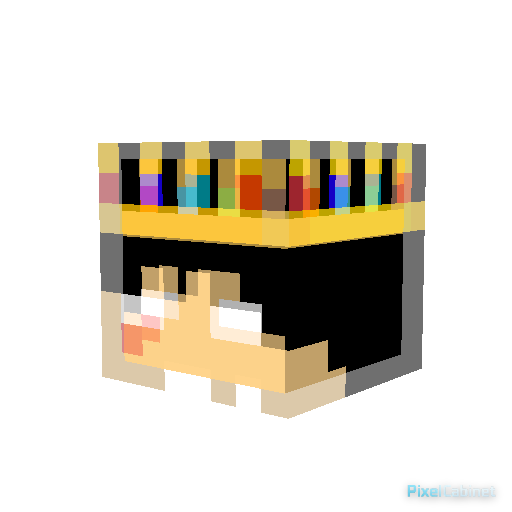
Tafcrazy
Role: Cast 16
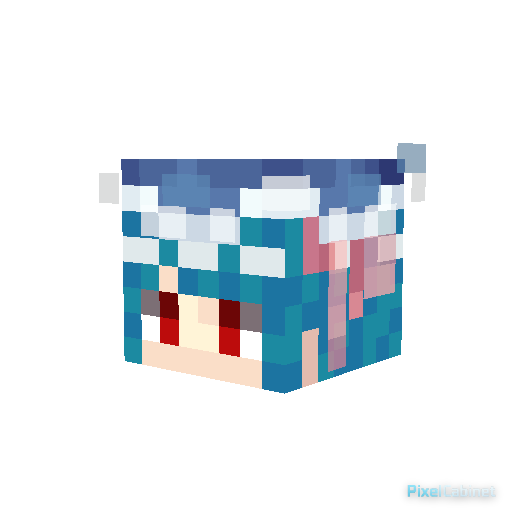
0366 Clamperl Yuki
Role: Cast 17
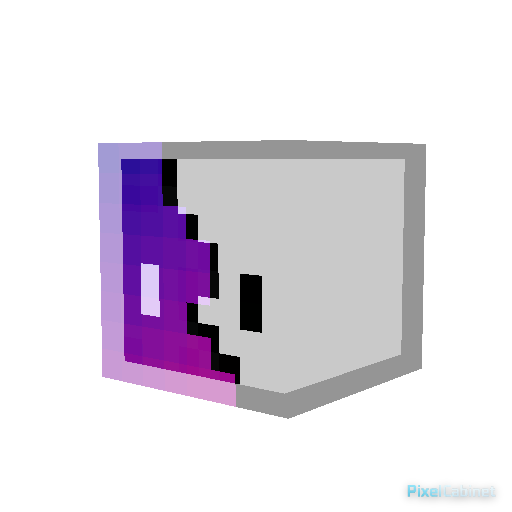
Amy skin
Role: Cast 18
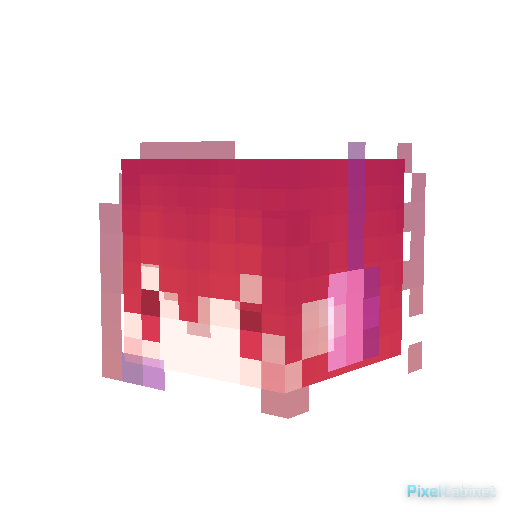
teto
Role: Cast 19
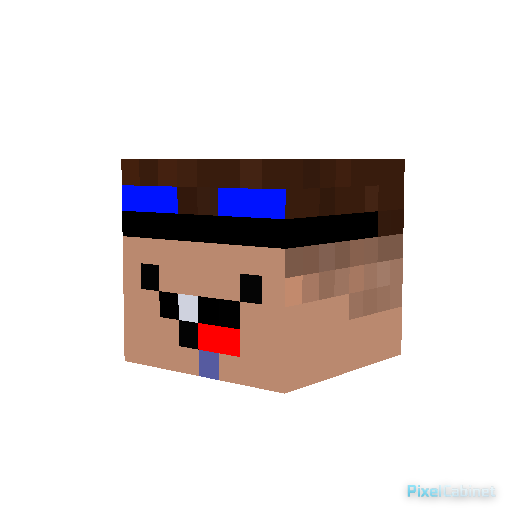
Ryan
Role: Cast 20
Scene
- Environment
- Dark stage
- Floor
- Open stage
- Motion
- Poses & motion from the stage document
About this stage
This stage places multiple Minecraft characters into a shared 3D scene. Use the player controls to watch motion, pause on a frame, and focus on the cast arrangement.
Create your own Minecraft character stage
Use PixelCabinet Stage to build your own Minecraft character scene with skins, poses, items, backgrounds, and motion. It works well for group scenes, dance previews, character posters, and short visual stories.
Create a stage for every scene
Start a new stage for dance, roleplay, story scenes, group previews, or short character videos.
Dance scene
Make multiple characters dance together on a custom stage.
Character scene
Place characters in a scene and create a shareable moment.
Story screenshot
Set up a small story scene with poses, items, and background.
Server roleplay
Show server members or roleplay characters in a 3D scene.
Motion preview
Preview motion and poses before sharing or exporting.
Short video setup
Create a simple stage scene for short clips and social posts.
Continue exploring
Open the stage hub, browse skins, or continue into studio tools for props, motion, and export.
Browse public stages
Open the stage hub to discover more public scenes, character groups, and motion previews.
Browse Minecraft skins
Start from public skins when you need characters for your next scene.
Open Minecraft Skin Showcase
Use Showcase when you want collection-style character display instead of one shared scene.
Open Item Studio
Add props and held items before publishing a public stage.
Open Export Studio
Turn a stage setup into snapshots, GIFs, or video exports after arranging the scene.